If you are used to working with PDF files,
your notion of a 'structure' - i.e. the contents of one PDF file, is probably
that it comprises a tree of boxes, a list of operations, and a header. However
the Structure Editor caters for a number of different file
formats, some of which are more expressive than this. The result is that internally
the Structure Editor operates on what it calls a 'Structure Set'. One Structure
Set corresponds to the contents of one file, and comprises (in its most populated
form):
- An overall header
- An overall trailer
- A number of structures, each of which comprises:
- A structure header
- A structure trailer
- The structure details:
- A tree of boxes
- A list of operations
- A list of conditions
Here is a screen shot of the Structure Editor with a newly-created JSP Tool
file to which two new structures have been added:
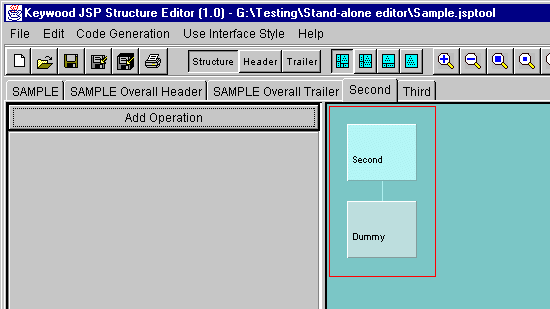
This contains three structures called 'SAMPLE', 'Second' and 'Third'. (The name
'SAMPLE' was assigned to the first structure by the Structure Editor because
the file is called 'Sample.jsptool'.) There is a separate tab just below the toolbar
for each structure. There are also tabs for 'SAMPLE Overall Header' and 'SAMPLE
Overall Trailer'. Note also the presence of three 'radio' buttons in a group on
the toolbar labelled 'Structure', 'Header' and 'Trailer'. All these tabs and buttons
can be confusing, so here's how it all works:
- There is a tab for the overall header, a tab for the overall trailer, and
a tab for each structure. (The word 'overall' in the the first two indicate
that they relate to the whole file and not a particular structure. However,
because the Structure Editor derives the name of the first structure from
that of the file, the word 'SAMPLE' appears both in one of the structure tab
names and also in the overall header and trailer tab names, which can be confusing.
Remember though, that the header and trailer tabs are the overall ones for
the whole file.)
- If you click on either the overall header tab or the overall trailer tab, the three radio-buttons
in the toolbar disappear. If you click on one of the tabs representing a structure (e.g. 'Second')
the radio buttons come back. This tells you that the radio buttons are only relevant for
an individual structure, and they allow you to see the three important things it comprises - i.e.
the structure's header, its trailer, and its details (boxes, operations, conditions).
Here are a few screen shots to illustrate this.
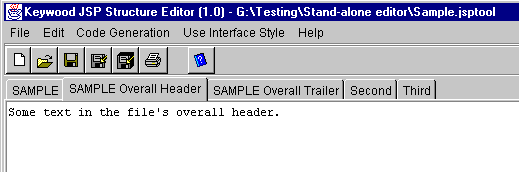
In this first one, the tab representing the overall header has been selected. Notice that
the structure/header/trailer radio buttons do not appear on the toolbar:
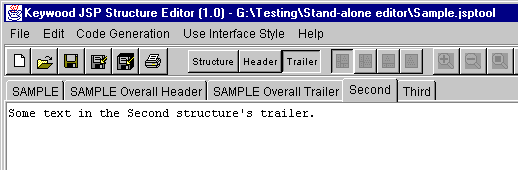
In this next example, the tab representing the structure named 'Second' has been
selected. The structure/header/trailer radio buttons are now present on the toolbar,
allowing you to flip between the structure's details, its header or its trailer.
Here the 'trailer' radio button is depressed, so the trailer is showing:
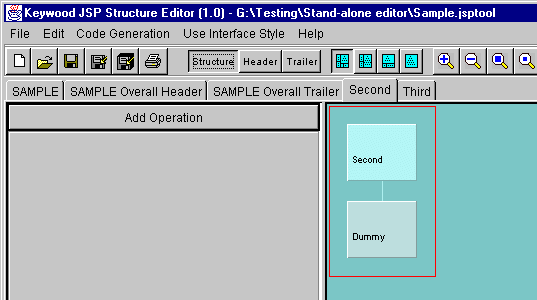
Here, the tab for structure 'Second' is still selected, but the 'structure' radio button is depressed instead.
This causes the details of the structure to be shown:
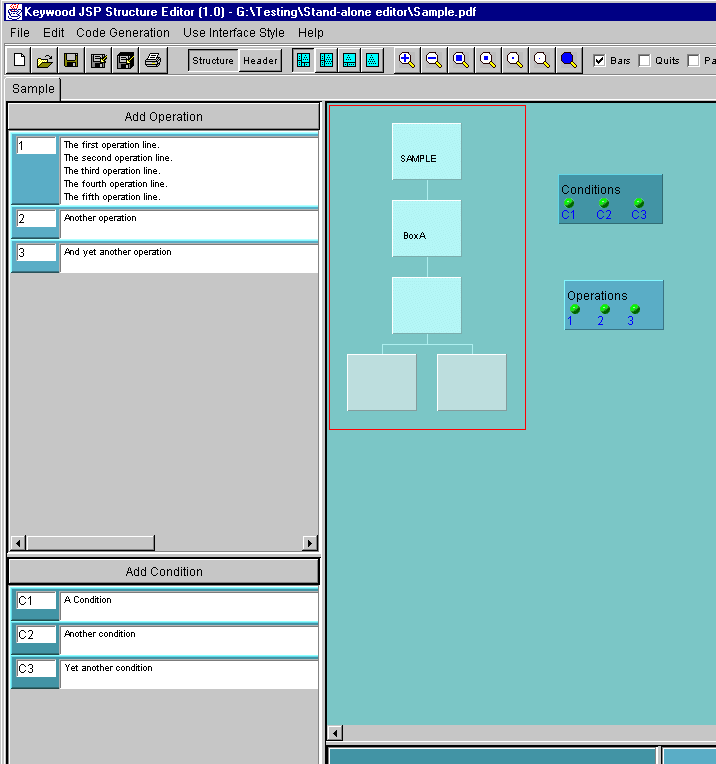
Here, a different file is being viewed, and instead of a JSP Tool file as in the examples above,
this one is a PDF file. PDF files just contain one structure which has a header but no trailer.
Hence in the screen shot below, notice that there is just one tab for the single structure, and its name
is the same as the file. Because PDF files do not contain headers, there are now only two radio buttons - one for
the structure details and one for the header: